
InfraEye Documentation
Everything you need to deploy, configure, and operate InfraEye — the agentless observability and self-healing command center for modern DevOps teams.
Introduction
InfraEye is an enterprise-grade, agentless observability platform. It provides a unified "Command Center" for your entire infrastructure — from bare-metal Linux servers to complex Kubernetes clusters — featuring real-time telemetry, AI-driven diagnostics, and a proactive self-healing engine.
Instead of installing agents on every target, InfraEye's Go backend reaches out over SSH and the Kubernetes API to collect metrics, stream logs, and execute remediation — so target machines stay untouched.
Key Modules
| Module | Description | Status |
|---|---|---|
| Infrastructure Navigator | Unified view of Linux/macOS/Windows servers with real-time CPU, memory, disk & network telemetry. | Production |
| Kubernetes Explorer | Lens-style resource explorer for pods, deployments, CRDs, and the Gateway API. | Production |
| Resource Catalog | Manage databases and internal services via a secure gateway, without exposing SSH. | Production |
| Netra AI Assistant | LLM-powered infrastructure consulting, log analysis, and remediation suggestions. | Beta |
| Self-Healing Engine | XML-defined alert rules that trigger automated SSH remediation commands. | Production |
| OIDC / SSO Authentication | Keycloak, Auth0, Okta, and Azure AD integration for enterprise single sign-on. | Production |
| MCP Sidecar | Model Context Protocol integration for AI-driven cluster troubleshooting. | Experimental |
| SSH Terminal | Full browser-based xterm.js terminal over secure SSH tunnels. | Production |
| Infra Map | Live topology of servers, clusters, and resources, with optional network discovery. | Beta |
| Netra Agent | Multi-step, goal-driven automation where every SSH or cluster action waits for human approval. | Beta |
| Security Audit | Kernel CVE, server hardening, cluster, resource, code (SAST/SCA), and DAST scanners. | Beta |
| Developer Hub | 20+ built-in DevOps utilities — CIDR, JWT, TLS, YAML/JSON, cron, Ingress → Gateway API, and more. | Beta |
| Desktop App | Native macOS (Apple Silicon), Linux, and Windows app (Wails) — SQLite-backed, no Docker required. | Beta |
| Infrastructure-as-Code Sync | Sync server lists and alert rules from a Git repo — non-destructive, credentials never read from Git. | Beta |
Tech Stack
- Backend: Go 1.22+, GORM, Gin — a single binary orchestrating SSH pools, WebSockets, and the Kubernetes client-go SDK.
- Frontend: React 19, TypeScript 5.9, served via Nginx in production.
- Data layer: PostgreSQL (persistent state), Redis (pub/sub & caching).
- AI layer: MCP (Model Context Protocol) sidecar for cluster-aware tool calling, with pluggable LLM providers (Claude, Gemini, Mistral, DeepSeek, OpenRouter).
- Packaging: Docker images published to
ghcr.io/mnshchtri/infra-eye; Kubernetes manifests managed via Kustomize.
Architecture — The Distributed Bridge
Unlike traditional monitoring tools that require an agent on every target server, InfraEye uses an Agentless Bridge pattern:
- Backend (Go): Acts as the central orchestrator and manages a pool of SSH connections.
- Telemetry collectors: Every 10–60 seconds (configurable via
METRICS_INTERVAL), the backend executes lightweight commands (top,df,free,ifconfig) over SSH. - Real-time stream: Results are parsed into JSON and pushed to the React frontend via WebSockets.
- No persistence on targets: Target servers remain clean — no open ports beyond SSH, and no extra processes running.
Request Flow
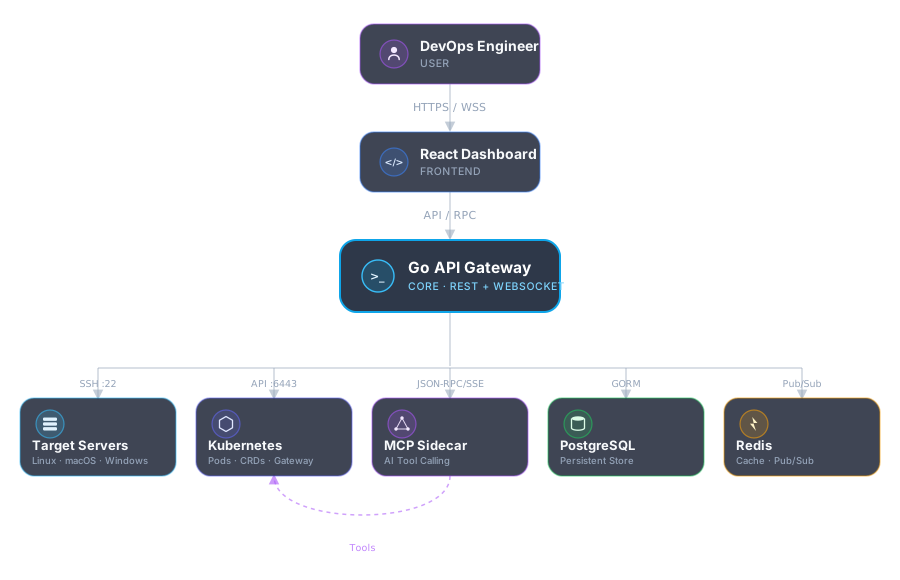
The React dashboard talks to the Go API over HTTPS and WebSockets. The API is the only component that reaches into your infrastructure — over SSH for servers and the Kubernetes API for clusters — and it persists state to PostgreSQL while using Redis for pub/sub and caching. The MCP sidecar gives Netra AI structured, tool-based access to live cluster state.
Ports & Services
| Service | Docker Compose | Kubernetes | Purpose |
|---|---|---|---|
| Dashboard / API | :8080 | :30080 (NodePort) | React frontend + Go REST/WS API |
| MCP Sidecar | 127.0.0.1:8090 | :8090 (cluster-internal) | Kubernetes-aware AI tool calls |
| PostgreSQL | 5432 | ClusterIP | Persistent application data |
| Redis | 127.0.0.1:6379 | ClusterIP | Pub/sub & caching |
Deployment: Docker Compose
The fastest way to run InfraEye on a single host. The installer clones the repo, generates a .env, and brings up the full stack with Docker Compose.
What gets deployed
- app — the InfraEye Go backend, serving the built React frontend and REST/WebSocket API on
:8080 - postgres — PostgreSQL 16, persisted to a named Docker volume
- redis — Redis 7 for pub/sub and caching
- mcp-server — the Kubernetes MCP sidecar, bound to
127.0.0.1:8090 - mcp-init — a one-shot init container that seeds an empty kubeconfig before the sidecar starts
8080 free on the host.
After install, open http://<your-ip>:8080 and log in with the default credentials.
Deployment: Kubernetes
Recommended for production. Deploys InfraEye, PostgreSQL, Redis, and the MCP sidecar into the infra-eye namespace via Kustomize, exposed with a direct NodePort.
The installer checks dependencies, auto-detects your kubeconfig (including k3s), interactively prompts for AI provider keys (press Enter to skip any), generates a gitignored k8s/secret.yaml, and applies everything with kubectl apply -k k8s/. It works with k3s, kubeadm, and managed clusters (EKS, GKE, AKS).
Useful kubectl commands
| Action | Command |
|---|---|
| Status | kubectl get pods -n infra-eye |
| Logs | kubectl logs -n infra-eye deploy/infra-eye -f |
| Update | kubectl rollout restart deploy/infra-eye -n infra-eye |
| Uninstall | kubectl delete namespace infra-eye |
Once the rollout completes, InfraEye is reachable at http://<node-ip>:30080.
Deployment: Desktop App Beta
A fully self-contained native app for macOS, Linux, and Windows — no Docker, no Postgres, no Redis. The same Go backend and React frontend run embedded inside a Wails desktop shell, backed by a local SQLite database instead of Postgres. Intended for single-user local use: a laptop you carry between sites, or a workstation you'd rather not run Docker on.
Install (macOS, via Homebrew)
Download
| Platform | Package | Notes |
|---|---|---|
| macOS | InfraEye-macOS-arm64.dmg | Apple Silicon, drag-to-Applications |
| Linux | InfraEye-Linux.deb | x86_64, Debian/Ubuntu (Depends: libgtk-3-0, libwebkit2gtk-4.1-0) |
| Linux (Arch) | InfraEye-Linux.pkg.tar.zst | x86_64, same binary as the .deb (depends: gtk3, webkit2gtk-4.1) — pacman -U InfraEye-Linux.pkg.tar.zst |
| Windows | InfraEye-Windows-amd64.exe | x86_64, NSIS installer (bundles the WebView2 runtime) |
Grab the latest build from the GitHub Releases page, or see building from source below.
macOS: "InfraEye.app is damaged"
The macOS build is ad-hoc signed — its signature is valid, but it isn't signed with an Apple Developer ID and carries no notarization ticket, so Gatekeeper rejects it. macOS flags anything downloaded from the internet with a com.apple.quarantine attribute, and a quarantined app that fails Gatekeeper is reported with the misleading message "InfraEye.app is damaged and can't be opened. You should move it to the Trash." The app isn't damaged and the download isn't corrupt.
brew install --cask infra-eye gives you an app that opens on first launch with no extra steps.
If you downloaded the .dmg directly instead, drag InfraEye.app to Applications as usual, then clear the attribute yourself:
The app opens normally after that, and the step is only needed once per install. On macOS Ventura and later you can alternatively open System Settings → Privacy & Security and click Open Anyway after the first blocked launch.
What's different from the server install
- SQLite, not Postgres — a single database file, no separate DB process.
- No Redis — it was only ever used to probe a user-added Redis resource, never as internal app infrastructure, so nothing is lost.
- Single-user, local-only by default — the backend binds to
127.0.0.1only; there's no reverse proxy or public exposure. - Kubernetes features are optional — the MCP sidecar (
kubernetes-mcp-server) is spawned automatically if found on yourPATH, and Kubernetes cluster management is disabled gracefully if it isn't. Linux-server (SSH) monitoring works either way. - OIDC/SSO is off by default — it can still be enabled for power users who want to register
http://127.0.0.1:8073/api/auth/oidc/callbackwith their own identity provider.
Local data
| OS | App-data directory |
|---|---|
| macOS | ~/Library/Application Support/InfraEye |
| Linux | ~/.config/InfraEye (or $XDG_CONFIG_HOME/InfraEye) |
| Windows | %AppData%\InfraEye |
This directory holds infraeye.db (SQLite, WAL mode), a generated jwt.secret (created once on first launch, persisted across restarts), ssh_known_hosts (pinned SSH host keys — see host-key verification), and an mcp/kubeconfig used only when the MCP sidecar is running.
In-app updates
The desktop build updates itself. The version button at the bottom of the sidebar checks GitHub Releases for a newer desktop-v* tag and, when one exists, downloads and installs the package for your platform — the .dmg on macOS (swapped into place, with the old bundle kept as a backup until the copy succeeds), the .deb or .pkg.tar.zst on Linux (installed via pkexec, so you'll see your desktop's native password prompt), or the NSIS installer on Windows. The app then relaunches on the new version. Downloads are only accepted from GitHub release-asset URLs over HTTPS.
reload.sh or kubectl rollout restart.
Building from source
This builds the frontend with VITE_API_URL pointed at the desktop backend's fixed local port, copies the build output into backend/cmd/desktop/frontenddist, and runs wails build. The output lands in backend/cmd/desktop/build/bin/.
libgtk-3-dev and libwebkit2gtk-4.1-dev (or 4.0-dev on older distros) installed before running wails build. Windows builds need NSIS (makensis on your PATH) if you want a packaged installer via wails build -nsis — without it, wails build still produces a working .exe, just not the installer.
Developer Setup (Hybrid Mode)
For active development, run the databases in Docker and the app natively for fast rebuilds.
Requires Go 1.22+ and Node.js. The backend listens on :8080, the frontend Vite dev server on :5173 (proxying API calls to the backend).
Hot Reload & Updates
When you pull new commits or edit your host .env file after installation, apply changes without a manual teardown:
The script pulls the latest commits from main, checks for host-level .env changes, triggers docker compose up -d --build --force-recreate, and purges dangling Docker images to reclaim disk space.
Persistence
These survive restarts, reloads, and upgrades on the host:
- Database:
/var/lib/postgresql/data, on a named Docker volume (Compose) or a PersistentVolumeClaim (Kubernetes). - Kubeconfig: passed to the MCP sidecar through a local bind mount (Compose) or an
emptyDir(Kubernetes), so the sidecar can reach the clusters you've added. - SSH host keys: pinned in
/data/ssh_known_hostsinside the container (override withSSH_KNOWN_HOSTS_PATH).
Environment Variables
Core variables read by the Go backend (backend/.env.example):
| Variable | Description |
|---|---|
DB_DSN | PostgreSQL connection string |
REDIS_ADDR | Redis host:port |
JWT_SECRET | Signing key for internal auth tokens — set a strong random value in production |
DEEPSEEK_API_KEY / GEMINI_API_KEY / MISTRAL_API_KEY / OPENAI_API_KEY | Optional per-provider keys that unlock Netra AI diagnostics |
LOCAL_LLM_URL / LOCAL_LLM_MODEL | Optional self-hosted, OpenAI-compatible endpoint (Ollama, LM Studio, llama.cpp server, vLLM) for Netra — no API key required. Each user can also override this from Settings. |
SLACK_WEBHOOK_URL / GOOGLE_CHAT_WEBHOOK_URL | Webhook targets for the Alert Engine |
METRICS_INTERVAL | Telemetry polling interval in seconds (10–60 typical) |
LOG_MAX_LINES | Maximum lines returned per log stream (default 500) |
Additional variables
Not in .env.example, but read by the backend when set:
| Variable | Default | Description |
|---|---|---|
ADMIN_PASSWORD | infra123 | Password for the seeded admin user. Enforced on every backend start — see Default Credentials. |
OPENROUTER_API_KEY | — | Server-wide OpenRouter key for Netra and the Netra Agent. Users can override it with their own key in Settings. |
DB_DRIVER | postgres | postgres or sqlite. The desktop app sets sqlite automatically. |
MCP_SERVER_URL | http://localhost:8090 | Where the backend reaches the MCP sidecar. |
MCP_SHARED_PATH | ./shared_mcp | Directory the backend writes the sidecar's merged kubeconfig into. |
MCP_HOST_IPS | — | Comma-separated cluster API-server IPs (e.g. 192.168.1.87,192.168.1.78) to rewrite to host.docker.internal in the sidecar's kubeconfig when running in Docker. Use it for LAN addresses the container can't route to directly (common with OrbStack). localhost/127.0.0.1 are always rewritten. |
RESOURCE_GATEWAY_URL / RESOURCE_GATEWAY_TOKEN | — | Gateway used by the Resource Catalog to test and reach internal services. |
SSH_KNOWN_HOSTS_PATH | /data/ssh_known_hosts (Docker) | File where pinned SSH host keys are stored. |
GITSYNC_WORKDIR | ./shared_gitsync | Local clone location for IaC Sync when running natively. Inside Docker the path is always /shared_gitsync/repo. |
ZAP_API_URL / ZAP_API_KEY | — | A running OWASP ZAP daemon for DAST scans. Without it, InfraEye runs ZAP on demand through Docker. |
For OIDC/SSO-specific variables, see OIDC / SSO Integration below.
Infrastructure Navigator Production
The primary dashboard for server management, covering bare-metal Linux, macOS, and Windows hosts via secure, agentless SSH.
- Telemetry: Real-time CPU, memory, disk, and network metrics visualized with high-performance Recharts; CPU usage can be broken down per core.
- Log tailer: Uses
tail -fover SSH to stream any log file — syslog, auth, or custom app logs — directly to your browser. - Smart tags: Group servers by environment (
prod,staging), location, or role. - Secure authentication: Upload or paste SSH private keys (or use interactive passwords) directly through the UI — no host-filesystem mounts required.
- SSH terminal: A full
xterm.jsPTY terminal in the browser, over the same pooled SSH connection. - Folders: Organize servers and resources into folders; IaC Sync can create them for you.
Host-key verification
SSH host keys are verified trust-on-first-use (TOFU). The first connection to a host records its key; every later connection must present the same key. If a host's key changes — a machine-in-the-middle, or a server that was rebuilt — InfraEye refuses the connection instead of silently accepting it. Keys are stored in /data/ssh_known_hosts (Docker), ./data/ssh_known_hosts (native dev), or the desktop app-data directory, and SSH_KNOWN_HOSTS_PATH overrides the location. If you rebuilt a server on purpose, remove its line from that file to re-pin the new key.
SSH Terminal Production
A full interactive shell on any managed server, in the browser. Open a server from Servers and switch to its Terminal tab. Anything you can do in a normal SSH session works here, including vim, htop, tmux, and colored output.
How it works
- The browser renders the terminal with
xterm.jsand connects to the backend over an authenticated WebSocket (/ws/servers/:id/terminal). - The backend opens a new session on that server's pooled SSH connection, using the same key or password you saved for telemetry. No separate credentials, and no port besides 22.
- It requests an
xterm-256colorPTY and relays keystrokes and output in both directions until you close the tab.
If the pooled connection has gone stale (for example after a server reboot), the backend drops it and reconnects once before giving up. Host keys are checked the same way as every other SSH connection. See host-key verification.
Access control
| Rule | Detail |
|---|---|
| Roles | Only admin and devops can open a terminal. trainee and intern don't see the tab. |
| Revocation | Deactivating a user closes their open terminals right away. A background sweep also closes, within 30 seconds, any socket whose account became invalid some other way (an OIDC role sync, a direct DB change, a deleted row). |
| Clusters | A cluster added only by kubeconfig has no SSH host, so it has no server terminal. Use the Kubernetes Explorer's pod and node shells instead. |
Kubernetes Explorer Production
A browser-based, Lens-style alternative to kubectl for every connected cluster.
- Full resource coverage: Pods, workloads, config, storage, RBAC, CRDs, and the Gateway API (Gateways, HTTPRoutes).
- Resource maps: Visualize relationships between Services → Deployments → Pods.
- Event streaming: Real-time cluster events catch
CrashLoopBackOfforImagePullBackOffinstantly. - Actions: Create resources from templates, scale and rollout-restart workloads, and edit live YAML — all from one pane.
- RBAC-conscious: Operates using the kubeconfig you provide in settings.
- Pod & node shells: Exec into any container, or open a root shell on a node. Node shells work like
kubectl debug node/<name>: a short-lived privileged pod mounts the host filesystem at/host, runschroot /host sh, and is deleted when the session ends. - Port forwarding: Start, list, and stop native port-forward sessions to pods and services from the UI.
Read-only kubeconfigs
Admins and devops users can generate a kubeconfig to hand to someone who needs to look at a cluster but not change it. InfraEye creates a dedicated ServiceAccount in a read-only namespace, binds it to a role that can get/list/watch everything (including pod logs), and returns a ready-to-use kubeconfig backed by a token that lasts up to 365 days. It can't create, update, patch, or delete anything, and it can't exec or port-forward. Existing kubeconfigs are listed per cluster and can be revoked individually, or all at once with kubectl delete ns read-only.
Resource Catalog & Secure Gateway Production
A dedicated Resources page for managing databases and other internal services without exposing them directly.
- First-class entries: Add Postgres, MySQL, Redis, Kafka, MinIO, HTTP/S, or generic TCP services with host, port, and metadata.
- Gateway connectivity: Resources are tested and accessed through a configured gateway URL and token — no need to expose SSH directly on each target.
- Credential support: Store usernames, passwords, and API secrets safely; they're used only when testing or validating connectivity.
- Status monitoring: Watch resource status changes and verify reachability from the backend without opening additional public ports.
Data browsers
Each resource's detail page includes a browser for the data inside it:
| Type | What you can do |
|---|---|
| Postgres / MySQL | Browse schemas, tables, and columns (type, nullability, default); page through rows; insert, edit, and delete individual rows; run ad-hoc SQL queries. |
| Redis | Scan keys by pattern; view a key's type, value, and TTL; edit or delete keys (string, hash, list, set, and sorted set). |
| Kafka | List topics with per-partition offsets, tail recent messages, and inspect consumer groups and their lag. Read-only. |
Viewing rows, running queries, and editing data require the admin or devops role. Each resource also has its own security scan.
Networking Inspector Production
OS-native visibility into listening ports, system services, and interfaces — built for Linux (ss/systemctl), macOS (lsof/launchctl), and Windows (PowerShell). See exactly what's exposed on every host.
VPN & Networking bridge
When monitoring remote servers from cloud environments where private IPs are unreachable, InfraEye can auto-provision secure connectivity:
- Tailscale & ZeroTier: Auto-generates installation commands using your Auth Key/Network ID, letting target servers join your mesh network in one step.
- OpenVPN: Upload or paste a
.ovpnconfig; InfraEye generates a base64-encoded shell script to auto-provision and connect remote Linux servers instantly.
Infra Map Beta
A live topology diagram of every server, cluster, and cataloged resource you can see, and the connections between them. Open it from Infrastructure → Infra Map.
What's on the map
| Node | Represents |
|---|---|
| Core | The InfraEye backend itself, the hub everything is managed from |
| Server | A managed Linux/macOS/Windows host |
| Cluster | A connected Kubernetes cluster |
| K8s node | A cluster node (live scan only) |
| Resource | A Resource Catalog entry (database, Kafka, MinIO, HTTP…) |
| Discovered | A device found by the nmap sweep that InfraEye doesn't manage (dotted outline) |
Edges show management links (core → server/cluster), hosted-on placement (a resource whose host matches a server), network traffic (observed TCP connections), and membership (a node belonging to a cluster or segment).
Three levels of detail
- Static (default): Built entirely from the database and DNS, so it's instant and never touches your hosts. Servers are grouped into network segments by address. Interface CIDRs recorded by an earlier live scan are reused, so real segments appear even on a normal page load. Private IPs with no interface data go into an assumed
/24, and the map labels those segments as a guess. - Live scan: SSHes into each reachable server to read its established TCP connections and real interface CIDRs, and lists every connected cluster's nodes. Segments then reflect real CIDRs, and the map shows which server talks to which. This works on busybox/Alpine as well as full distros, and on macOS and Windows.
- Discovery: Adds an
nmapping sweep, run from one server per real segment, to find devices InfraEye doesn't manage yet. It needsnmapinstalled and only runs when you turn it on, because it actively probes the network.
Controls
- Zone by network or folder: Group machines by the segment they sit on, or by their InfraEye folder.
- Find a server: Highlights a node and its direct connections, and expands collapsed zones that contain a match.
- Zoom / fit to view / refresh, and click a node for details.
- Export: Download the blueprint as a PNG or SVG image, or the raw topology as JSON for your own tools.
- Scan issues: If a live scan or discovery fails on some hosts, an issues badge lists every failure with its original error.
Connections and discovered devices are never cached. Each live refresh reads them again, and only the interface CIDRs are kept for the static view. The same data is available from GET /api/topology, ?live=true, and ?live=true&discover=true.
Storage Explorer Production
Answers what is consuming this disk, not just how full it is. Every mount, every heavy folder, every oversized file — read live off the host over SSH, with nothing installed on it.
- Mount inventory: capacity, usage and inode pressure per filesystem, with mount options and the backing block devices —
df/lsblkon Linux,diskutilon macOS, PowerShell on Windows. - Path analyzer: point it at any path and it walks the tree with
du/find, returning the largest folders and files beneath it. Click a folder to drill deeper; breadcrumbs walk back up. Runs only when you ask — a scan of/on a busy host is real disk I/O, not something to fire on a tab click. - Consumption by category: folders and files are classified into the kind of data they hold — Logs, Containers, Databases, Cache, Dependencies, VM images, Backups — and rolled up, so "48% full" becomes "half of it is container images".
- Honest totals: pooled filesystems (APFS containers, btrfs subvolumes) report the pool's full size from every volume they contain. InfraEye groups them so one 245 GB disk is counted once, not six times.
Kubernetes clusters
A cluster has no single disk to walk, so clusters get the objects that actually hold capacity: StorageClasses, PersistentVolumes, and PersistentVolumeClaims resolved to the pods holding them — plus per-node ephemeral capacity and live DiskPressure status. Provisioned capacity is rolled up by storage class and by namespace.
Live Log Streaming Production
Selectively tail the right stream — journal, syslog, auth, or kernel on Linux; the unified log on macOS; Event Logs on Windows. For clusters, stream Kubernetes events and warnings live. All log output is searchable and persisted.
Self-Healing Engine Production
Define "If-Then" automation logic for your infrastructure — the most powerful module in InfraEye. Alert conditions trigger automated remediation: restart services, scale pods, and recover from failures automatically.
Sync Bridge: paste/export rules as XML via the UI's Import/Export tab, or drive both alert rules and the server list declaratively from a real Git repository — see Infrastructure-as-Code Sync.
Netra AI Assistant Beta
Netra is your context-aware infrastructure co-pilot. It natively queries logs, metrics, and Kubernetes state to diagnose incidents in plain language — then hands you the exact command to fix them.
- Contextual awareness: When you ask "Why is my server slow?", Netra automatically pulls the latest metrics and logs for that server before answering.
- Remediation suggestions: Netra doesn't just explain errors — it provides the exact shell command to fix them, with one-click apply.
- Model choice: Powered by your choice of Claude, Gemini, Mistral, DeepSeek, or OpenRouter, with per-user API keys — or a self-hosted Local LLM (Ollama, LM Studio, llama.cpp server, vLLM), no API key required.
For multi-step work where Netra runs the commands itself, one approved step at a time, see Netra Agent.
Netra Agent Beta
The Agent is Netra with hands, and you keep a hand on the brake. Give it a goal and a target server, e.g. "find out why nginx keeps restarting and fix it." It works toward that goal in a loop. Each turn, the model proposes one action, either a shell command over SSH or a Kubernetes tool call through the MCP sidecar. The action runs only after you approve it, and the real output goes back to the model. This repeats until the model gives its final answer.
Starting a run
- Open Operations → Agent and click New Agent Run.
- Write the goal in plain language. Be specific about the result you want, e.g. "disk on /var is at 95% — find what's growing and free space safely."
- Pick the target server. The run is locked to that one server, and the model can't act on any other.
- Choose a provider: Claude (default), OpenRouter, Mistral, or a Local LLM. Optionally override the model.
- Click Launch Agent. The run appears as a live flow graph (goal → thinking → steps → result) that updates over a WebSocket as it progresses.
Reviewing steps
When the model proposes an action, the run pauses with Needs your approval and the pending step opens in the inspector, showing the exact command or tool call and its arguments.
| Your choice | What happens |
|---|---|
| Approve | The step runs (SSH commands time out after 30 seconds). Its stdout, stderr, and exit error are recorded and passed to the model exactly as returned. |
| Reject | Nothing runs. The model is told the step was rejected and has to try another approach. |
| Cancel run | Stops the whole run. No more steps are proposed. |
Lifecycle
| Object | States |
|---|---|
| Run | running → awaiting_approval → … → completed | failed | cancelled |
| Step | pending_approval → approved → executed | failed, or rejected |
Providers & keys
API keys follow the same rule as Netra: your own key from Settings if you've set one, otherwise the server-wide default (OPENROUTER_API_KEY, MISTRAL_API_KEY, LOCAL_LLM_URL…). The model must support tool calling. For local models that means one that handles OpenAI-style function calls, such as Llama 3.x or Qwen 2.5.
Safety model
- Nothing runs without a human: Every action needs an explicit approval, and none are auto-approved.
- Single-server scope: Tool calls must target the run's server. Kubernetes calls use that server's cluster context.
- Verbatim results: Output and errors are never summarized before the model or you see them, so a failing command looks like a failure.
- Roles: Only
adminanddevopscan create, approve, or view runs. - Audit trail: Every run is kept with its goal, every proposed step, your decision, and the real output, until you delete it.
MCP Sidecar Experimental
The MCP sidecar gives Netra and the Netra Agent structured, tool-based access to live Kubernetes state. It runs the open-source kubernetes-mcp-server, which speaks the Model Context Protocol (JSON-RPC 2.0 over HTTP/SSE) on port 8090. The model doesn't have to guess what kubectl would print: it calls a tool such as pods_list and gets the real answer back.
client-go and keeps working without it.
How it's deployed
| Install | How the sidecar runs | Which clusters it sees |
|---|---|---|
| Docker Compose | infra-eye-mcp container, bound to 127.0.0.1:8090. A one-shot mcp-init container creates an empty kubeconfig first, so the sidecar can start before the app. | Every cluster you've added. The backend merges their kubeconfigs into ./shared_mcp/kubeconfig, which is mounted read-only into the sidecar. |
| Kubernetes | A second container in the infra-eye pod (64–256 Mi memory), started with --cluster-provider in-cluster. | The cluster InfraEye is running in, through the infra-eye-sa ServiceAccount (bound to cluster-admin). |
| Desktop app | Started automatically if kubernetes-mcp-server is on your PATH; skipped with a warning if it isn't. | Every cluster you've added, through mcp/kubeconfig in the app-data directory. |
Kubeconfig sync
The backend rebuilds the merged kubeconfig at startup, whenever a cluster is added, edited, or deleted, and before status checks and kubectl calls. Each cluster's contexts are prefixed with server-<id>- so names from different kubeconfigs can't collide. When a tool call targets a specific server, InfraEye picks that server's context automatically. When the backend runs in Docker, API-server addresses of localhost/127.0.0.1 are rewritten to host.docker.internal, and so are any IPs listed in MCP_HOST_IPS.
Tools Netra uses
| Tool | Purpose | Type |
|---|---|---|
pods_list | List pods, optionally in one namespace | Read |
pods_log | Fetch pod logs (with optional tail) | Read |
events_list | Cluster events | Read |
resources_get / resources_list | Read any resource by apiVersion and kind | Read |
namespaces_list | List namespaces | Read |
pods_delete | Delete a stuck pod | Mutating |
pods_exec | Run a command in a pod | Mutating |
resources_create_or_update | Apply YAML | Mutating |
resources_scale | Scale a workload | Mutating |
In the AI Assistant, Netra asks for a tool with a fenced mcp block, and you run it with the Execute button. The output goes back to Netra automatically. Netra is told to use read tools freely, but before any mutating tool it has to explain why, what it affects, and how to roll back. The Netra Agent gets the sidecar's full tool list and needs approval for every call.
API endpoints
| Endpoint | Purpose |
|---|---|
GET /api/mcp/status | Re-syncs the kubeconfig, then reports available, url, and status_code. |
GET /api/mcp/tools | Lists the tools the sidecar offers. |
POST /api/mcp/tool | Runs one tool, with the target server's context added automatically. |
POST /api/mcp/kubectl | Runs a kubectl command through the sidecar against a given server's cluster. |
available: true only means something answered on the sidecar's port. A different local process on 8090 can produce a false positive. To confirm the sidecar itself is up, run docker ps | grep infra-eye-mcp, kubectl get pod -n infra-eye (look for 2/2 containers ready), or on desktop ps aux | grep kubernetes-mcp-server. For connection problems, see Troubleshooting.
Alert Engine Production
Define threshold-based alerts on any metric. Receive notifications via Slack and Google Chat webhooks with configurable severity levels.
Admins configure webhooks under System Settings → Alert Notifications, where each channel has a Test button. Only HTTPS URLs on the provider's real webhook host are accepted. SLACK_WEBHOOK_URL and GOOGLE_CHAT_WEBHOOK_URL still work as a fallback: a URL saved in the UI takes precedence, and clearing it falls back to the environment variable.
RBAC & OS Accounts Production
Fine-grained access control lets you grant individual users visibility into specific servers and clusters. A Cockpit-style OS account manager lets admins create real Unix users on target machines with tiered privileges.
| Role | Permissions |
|---|---|
admin | Full system access, user management |
devops | Server management, resources, alerts |
trainee | Limited resource access |
intern | Read-only access to the dashboard |
On target machines, OS accounts can be provisioned with Admin, Read/Write, Log-Viewer, or Read-Only privileges. These roles also drive OIDC group/role mapping when SSO is enabled.
Infrastructure-as-Code Sync Beta
Point InfraEye at a Git repository containing servers.yaml and/or alert-rules.yaml, and it will periodically (or on demand) create, update, and remove the server list and alert rules to match — without ever touching anything you created by hand in the UI.
File layout
Both files live at the repo root by default:
Set a Subdirectory in the settings (e.g. infraeye) if these files live in a subfolder instead — InfraEye will then look for infraeye/servers.yaml and infraeye/alert-rules.yaml. Both files are independently optional.
servers.yaml
ssh_key_path, ssh_password, or kube_config field. Credentials are never expected to live in a Git repo — a synced server appears as inventory metadata only, and someone still has to open it in InfraEye and add its SSH key/password (or kubeconfig) by hand.
alert-rules.yaml
How sync behaves
- Name is the identity. Each sync matches entries by
name: new names are created, existing Git-managed names are updated in place, and names no longer in the file are removed. - It only ever touches what it created. If a manually-added server or rule already has that name, sync skips it and reports a conflict in the run history — it never silently adopts or overwrites something made by hand.
- Editing a synced item in the UI unmanages it. That row becomes a normal manual entry from then on, so a support engineer's emergency fix in the UI is never silently reverted by the next scheduled sync.
- All or nothing. Changes from one run are applied in a single database transaction. If anything fails, none of that run's changes are kept.
Scheduling
With Enabled on, InfraEye syncs every 15 minutes by default. You can set another interval in the settings. When it's off, scheduled ticks do nothing, but Sync Now still works. The interval is read when the backend starts, so restart InfraEye after changing it. Each sync shallow-fetches (--depth 1) only the configured branch into a working copy under GITSYNC_WORKDIR.
Run history
| Status | Meaning |
|---|---|
running | Sync in progress |
success | Everything applied. Created/updated/deleted counts are shown for servers and rules. |
partial | Applied, but some entries were skipped because of name conflicts with manual items. The conflicts are listed on the run. |
failed | Nothing applied: a clone/fetch error, invalid YAML, or a database error. The raw error is shown, with credentials removed. |
Permissions & API
| Endpoint | Purpose | Roles |
|---|---|---|
GET /api/gitsync/settings | Read settings (the PAT is never returned) | admin, devops |
PUT /api/gitsync/settings | Change repo, branch, subdirectory, interval, enabled flag, PAT | admin |
POST /api/gitsync/test | Check that the repo and branch are reachable | admin, devops |
POST /api/gitsync/sync | Run a sync now | admin, devops |
GET /api/gitsync/runs | Run history | admin, devops, trainee |
Security Audit Beta
The Audit group in the sidebar holds six scanners that cover your hosts, clusters, services, source code, and running web apps. Server scans reuse InfraEye's existing SSH connections, so nothing is installed or copied onto the target. External scanners are never bundled: if one is missing, InfraEye says exactly what to install instead of skipping it quietly or faking a result.
| Scanner | Target | Needs |
|---|---|---|
| Kernel Scanner | Linux servers | SSH only |
| Server Hardening | Linux servers | SSH only (root reveals more) |
| Cluster Security | Kubernetes clusters | Kubeconfig only |
| Resource Security | Catalog resources | Nothing extra |
| Code Security | Git repositories | Gitleaks / Semgrep / Trivy / CodeQL on the backend host |
| DAST Scanner | Web URLs | Docker or a running ZAP daemon |
Kernel Scanner
Compares each Linux server's running kernel with a database of known local privilege-escalation CVEs, ported from kernelpwned into Go. A single SSH round trip collects the kernel release, kernel config (/boot/config-*), loaded and auto-loadable modules, relevant /proc//sys settings, and SUID/SGID targets. Every probe is read-only or a dry run (modprobe -n -v, unshare), so nothing on the host changes. Each CVE gets a verdict with the reason, e.g. "esp4 loaded" or "kernel outside affected range". Kubeconfig-only clusters and macOS hosts are excluded.
Server Hardening
| Check | Severity |
|---|---|
| SSH root login disabled | High |
| Only root has UID 0 | High |
| No accounts with an empty password | High |
| SSH password authentication disabled | Medium |
| Host firewall active | Medium |
No passwordless sudo entries | Medium |
| Automatic security updates enabled | Low |
Probes that can't run (e.g. reading /etc/shadow without root) come back as unknown instead of aborting the whole scan.
Cluster Security
Makes read-only List/Get calls against the live cluster and reports:
- Workload:
privilegedcontainers,hostNetwork/hostPIDpods (high), containers explicitly running as UID 0 (medium), containers with no CPU/memory limits (low). - RBAC: ClusterRoleBindings that grant
cluster-admin(high), and default ServiceAccounts that don't disable token automount (low). - Network: LoadBalancer and NodePort services, and namespaces with no NetworkPolicy, meaning no default-deny (low).
- Version: Kubernetes minor versions past community support (1.20–1.26). This list is a point-in-time snapshot, so cross-check it with upstream.
Resource Security
For each Resource Catalog entry: is it reachable, does it require authentication, and for TLS-capable protocols, is the certificate valid, trusted, and not about to expire? It only dials and completes a TLS handshake, and never guesses or submits credentials. Also available from each resource's detail page.
Code Security
Add a repository (name, HTTPS URL, branch, and an optional Personal Access Token for private repos). On each scan InfraEye shallow-clones it into an isolated temporary directory, runs the selected tools, merges their findings into one table (severity, file, line, rule), and deletes the clone.
| Tool | Finds |
|---|---|
| Gitleaks | Hard-coded secrets and credentials |
| Semgrep | Static analysis (SAST) for most languages |
| Trivy | Vulnerable dependencies (SCA), IaC misconfigurations, embedded secrets |
| CodeQL | GitHub's semantic SAST for JS/TS, Python, Ruby, and Go, with no separate build step |
Progress streams live to a scan log in the UI. If one tool fails, its raw stderr/exit error is shown next to the other tools' results, so a partial scan is never presented as complete. Semgrep's default auto ruleset needs outbound access to semgrep.dev; offline installs should use a local ruleset or a bundled pack such as p/ci.
DAST Scanner
Add a target URL (http/https only), then scan it with OWASP ZAP. If ZAP_API_URL (and ZAP_API_KEY) point at a running ZAP daemon, InfraEye uses its API. Otherwise it starts ghcr.io/zaproxy/zaproxy:stable in Docker for that scan. Alerts are normalized into the same findings table, and progress streams to a live log.
Installing scanner tools
InfraEye looks for each tool on PATH, then in common install locations (/opt/homebrew/bin, /usr/local/bin, MacPorts, /snap/bin, ~/.local/bin, ~/go/bin, ~/.cargo/bin), and for CodeQL, the usual unzip locations such as ~/codeql-home/codeql/codeql. The Code Security page shows each tool's status and install hint. If a tool lives somewhere else, an admin can set its absolute path there, and InfraEye checks that it exists and is executable when saved.
Results & permissions
Scans always run live when you ask. InfraEye keeps only the latest result per target and scanner, so audit pages show your current posture when they load without re-scanning. GET /api/audit/summary returns the rollup.
| Action | Roles |
|---|---|
| View audit pages & results | admin, devops, trainee |
| Run code & DAST scans, manage DAST targets | admin, devops |
| Add / edit / delete code repositories, set tool paths | admin |
Developer Hub Beta
A toolbox of 23 everyday DevOps utilities under Engineering → Developer Hub, so you don't have to paste certificates, tokens, or manifests into random websites. Everything except DNS Lookup runs locally in your browser. The Hub is currently shown to admin users.
Networking
| Tool | What it does |
|---|---|
| CIDR Calculator | Network/broadcast address, usable host range, and netmask for a CIDR block |
| CIDR Overlap & Match | Tests addresses against a list of CIDRs and flags blocks that overlap. Useful for debugging security groups, NetworkPolicy, and VPC peering. |
| Subnet Splitter | Splits an IPv4 block into equal subnets, by target prefix or by how many subnets you need |
| IPv6 Toolkit | Expands/compresses an address, and shows its prefix range, address type, and PTR name |
| DNS Lookup | Resolves A/AAAA/CNAME/MX/TXT and more over DNS-over-HTTPS |
Kubernetes & containers
| Tool | What it does |
|---|---|
| Ingress → Gateway API | Converts an Ingress into a Gateway and HTTPRoute. Best-effort, so review behavior that depends on annotations yourself. |
| K8s Manifest Cleaner | Removes server-generated fields (status, uid, resourceVersion, managedFields…) from a live manifest so it can be applied to any cluster |
| Resource Units | Converts CPU (millicores ↔ cores) and memory (Ki/Mi/Gi/Ti, decimal and binary) quantities |
| Image Reference Parser | Splits an image reference into registry, repository, tag, and digest |
| Jsonnet Evaluator | Evaluates Jsonnet, the language Tanka uses, into JSON or YAML |
Security & certificates
| Tool | What it does |
|---|---|
| TLS Certificate Decoder | Shows a PEM certificate's subject, issuer, validity window, and SANs |
| Certificate Chain Inspector | Checks a PEM bundle the way a TLS server loads it: order, missing intermediates, expiry |
| SSH Key Inspector | Fingerprints and key strength for a public key or a whole authorized_keys file |
| JWT Decoder / Encoder | Decodes any JWT, or signs a header/payload into an HS256 token for local testing |
| Hash Generator | SHA-1/256/384/512 digests and HMAC |
| UUID / Secret Generator | UUIDv4s and cryptographically random secrets |
Data & text
| Tool | What it does |
|---|---|
| JSON Formatter | Pretty-prints, minifies, and validates JSON |
| YAML ↔ JSON | Converts in either direction |
| Base64 Encoder | Encodes and decodes Base64 |
| Diff Checker | Line-by-line comparison of two texts |
| Cron Parser | Explains a 5-field cron expression in plain English and shows its next run times |
| Epoch Converter | Converts Unix timestamps (s/ms) to and from readable dates |
OIDC / SSO Integration
InfraEye supports OpenID Connect (OIDC) authentication, allowing you to integrate with enterprise identity providers like:
- Keycloak Recommended
- Auth0
- Okta
- Azure AD / Microsoft Entra ID
- Google Workspace
- Any OIDC-compliant provider
OIDC Prerequisites
- Keycloak 20.0+ (or another OIDC provider)
- InfraEye backend with network access to Keycloak
- Valid SSL certificates (recommended for production)
Keycloak Setup
1. Create a Realm
Log in to Keycloak Admin Console
Navigate to your Keycloak admin URL and authenticate.
Create the realm
Click Create Realm (or use an existing one). Set Realm name: infraeye (or your preference), then enable the realm.
2. Create a Client
Navigate to Clients → Create Client
Configure the client:
- Client ID:
infraeye-web - Name:
InfraEye Web Application - Client Protocol:
openid-connect - Access Type:
confidential
Configure Redirect URIs
Click Next and set:
- Valid Redirect URIs:
http://localhost:8080/api/auth/oidc/callback(dev) andhttps://infraeye.yourdomain.com/api/auth/oidc/callback(prod) - Web Origins:
http://localhost:3000(dev) andhttps://infraeye.yourdomain.com(prod)
Copy the Client Secret
Go to the Credentials tab and copy the Client Secret.
3. Configure Client Scopes
Ensure the following scopes are enabled:
openidprofileemailroles(for role mapping)
4. Create Groups / Roles
InfraEye maps Keycloak groups or roles to its internal roles:
| Keycloak Group/Role | InfraEye Role | Access Level |
|---|---|---|
infraeye-admin | admin | Full system access |
infraeye-devops | devops | Server management, resources |
infraeye-trainee | trainee | Limited access |
| Default (none) | intern | Read-only dashboard |
Option A: Using Groups Recommended
- Navigate to Groups → Create Group
- Create groups:
infraeye-admin,infraeye-devops,infraeye-trainee - Assign users to appropriate groups
- Enable group membership in token:
- Go to Client Scopes → roles → Mappers
- Create a new Group Membership mapper
- Set Token Claim Name:
groups - Enable Full group path: Off
Option B: Using Client Roles Alternative
- Navigate to Clients →
infraeye-web→ Roles - Create roles:
admin,devops,trainee - Assign roles to users via Users → Select User → Role Mapping
5. Create Test Users
- Navigate to Users → Add User
- Set Username and Email
- Click Save
- Go to Credentials tab → Set Password
- Assign to appropriate group or role
OIDC: InfraEye Configuration
Environment Variables
Add these variables to your .env file or environment:
Configuration Reference
| Variable | Description | Example |
|---|---|---|
OIDC_ENABLED | Enable/disable OIDC auth | true or false |
OIDC_ISSUER_URL | Keycloak realm URL | https://keycloak.example.com/realms/infraeye |
OIDC_CLIENT_ID | Client ID from Keycloak | infraeye-web |
OIDC_CLIENT_SECRET | Client secret from Keycloak credentials tab | abc123... |
OIDC_REDIRECT_URL | Callback URL (must match Keycloak config) | https://infraeye.example.com/api/auth/oidc/callback |
OIDC_SCOPES | OAuth scopes to request | openid profile email roles |
Docker Compose
Kubernetes
Create a secret:
Add to your deployment manifest:
OIDC Role Mapping
InfraEye automatically maps Keycloak groups/roles to internal roles.
Mapping Logic
The system checks in this order:
- Groups (from
groupsclaim) - Roles (from
rolesclaim) - Default →
intern
Mapping Table
| Keycloak Group/Role | InfraEye Role | Permissions |
|---|---|---|
infraeye-admin or contains admin | admin | Full system access, user management |
infraeye-devops or contains devops | devops | Server management, resources, alerts |
infraeye-trainee or contains trainee | trainee | Limited resource access |
| (none or other) | intern | Read-only access to dashboard |
Custom Role Mapping
To customize role mapping, edit backend/internal/handlers/oidc.go:
Frontend Integration
The frontend automatically detects OIDC configuration via /api/auth/oidc/config.
Login Flow
- User clicks "Sign in with SSO" button
- Frontend calls
/api/auth/oidc/login - User is redirected to Keycloak login page
- After authentication, Keycloak redirects to
/api/auth/oidc/callback - Backend validates the token and creates/updates user
- Backend issues internal JWT token
- User is logged into InfraEye
/api/auth/login for emergency admin access, local testing, and non-OIDC users.
OIDC Testing
1. Verify OIDC Configuration
Expected response:
2. Test Discovery Endpoint
3. Test Login Flow
- Navigate to InfraEye login page
- Click "Sign in with SSO"
- Log in with test user credentials
- Verify you're redirected back and logged in
4. Check Backend Logs
Expected output:
OIDC Troubleshooting
"OIDC is not configured"
Cause: OIDC_ENABLED is not set to true or configuration is missing.
Solution:
- Verify
.envfile hasOIDC_ENABLED=true - Restart the backend:
docker compose restart app
"Failed to fetch OIDC discovery"
Cause: Backend cannot reach Keycloak or issuer URL is wrong.
Solution:
- Check network connectivity:
curl https://keycloak.yourdomain.com/realms/infraeye/.well-known/openid-configuration - Verify
OIDC_ISSUER_URLis correct (no trailing slash before/realms) - Check firewall rules
"Invalid redirect URI"
Cause: Redirect URI in Keycloak doesn't match OIDC_REDIRECT_URL.
Solution:
- In Keycloak, go to Clients →
infraeye-web→ Settings - Add exact redirect URI:
https://infraeye.yourdomain.com/api/auth/oidc/callback - Save
"Token exchange failed"
Cause: Invalid client secret or client configuration.
Solution:
- Verify
OIDC_CLIENT_SECRETmatches Keycloak Credentials tab - Ensure Access Type is
confidential - Check backend logs for detailed error
"User created with wrong role"
Cause: Role mapping not configured correctly.
Solution:
- Verify user has correct group assignment in Keycloak
- Check Client Scopes → roles → Mappers includes
groupsclaim - Test token content: decode the ID token at jwt.io
SSL/TLS Errors
Cause: Certificate validation issues.
Solution:
- Development: Use HTTP for Keycloak or disable cert validation (not recommended)
- Production: Ensure valid SSL certificates on both InfraEye and Keycloak
OIDC Security Best Practices
- Use HTTPS in Production: Never send tokens over HTTP in production
- Strong Client Secret: Generate cryptographically random client secrets (32+ characters)
- Rotate Secrets: Periodically rotate
JWT_SECRETandOIDC_CLIENT_SECRET - Limit Token Lifetime: Configure reasonable token expiration in Keycloak
- Audit Logging: Monitor authentication events in both Keycloak and InfraEye
- Least Privilege: Assign users to the minimum required role
- Backup Admin: Keep at least one local admin account for emergency access
Migration from Local Auth
If you're migrating from local authentication:
- Enable OIDC but keep local auth working
- Match user emails: Ensure Keycloak users have same email as local users
- Test thoroughly: Verify all existing users can log in via OIDC
- Gradual rollout: Inform users about the new login method
- Keep fallback: Maintain local admin account for emergencies
Advanced OIDC Configuration
Custom Token Claims
To use custom claims from Keycloak:
- Add mapper in Keycloak Client Scopes
- Update
OIDCUserInfostruct inbackend/internal/handlers/oidc.go - Modify
syncOIDCUser()to process custom claims
Multiple OIDC Providers
To support multiple providers, you'll need to:
- Create separate handler functions for each provider
- Add provider-specific routes (e.g.,
/api/auth/google/login,/api/auth/azure/login) - Store provider information in user record
Session Management
Current implementation issues JWT tokens with 24-hour expiration. To add refresh tokens:
- Store OIDC refresh token in secure cookie or database
- Implement
/api/auth/refreshendpoint - Use refresh token to get new access token before expiration
Default Credentials & First Login
On first deploy, a database seed script creates the default roles and an administrative user:
| URL | http://<your-ip>:8080 (Docker) or http://<node-ip>:30080 (Kubernetes) |
| Username | admin |
| Password | infra123 |
ADMIN_PASSWORD to a strong value in your .env (or Kubernetes secret) before exposing InfraEye. On every start, the backend resets the admin password to ADMIN_PASSWORD — or to infra123 if the variable is unset. A password changed only in the User Management panel will revert to the default on the next restart.
Verifying the seed ran
If login fails and you suspect the database didn't seed correctly, check the users table directly:
If the query returns 0 rows, the seed migration hasn't run yet — re-check backend startup logs for migration errors. Restarting the backend reruns the seed, and it also restores the admin password to ADMIN_PASSWORD/infra123, so a restart is usually the fastest way back in. As a last resort, insert the admin user by hand (password infra123):
Manually insert the default admin user
Troubleshooting
Can't log in on a fresh install
See Default Credentials above to verify the seed migration ran.
"OIDC is not configured"
OIDC_ENABLED is missing or not true. Verify your .env and restart the backend. Full walkthrough in OIDC Troubleshooting.
MCP sidecar can't reach the cluster
Confirm shared_mcp/kubeconfig is populated (Docker Compose) or that the infra-eye service account has cluster access (Kubernetes). The backend syncs the kubeconfig to the sidecar on startup — check docker logs infra-eye-mcp or kubectl logs -n infra-eye deploy/infra-eye -c mcp-server.
Kubernetes cluster shows "offline" / no data (Desktop app)
The Kubernetes Explorer connects to each cluster directly via client-go using that server's stored kubeconfig — it doesn't go through the MCP sidecar. A cluster showing no data is almost always a network path problem between your machine and the API server, not an InfraEye bug:
- Check the server's
status/k8s_connectedfields (GET /api/servers) —offlinemeans the backend already tried and failed to reach it. - Test reachability directly:
curl -sk https://<api-server-host>:6443/versionornc -zv <host> 6443. A TLS/auth error means the network path is fine; a timeout or "Host is down" means it isn't. - If the cluster runs in a local VM (OrbStack, Docker Desktop, Multipass, etc.), its private network can go stale after sleep/wake or a Wi-Fi/VPN change even though the VM and cluster are healthy. Restarting the VM or the virtualization app usually restores routing.
Desktop app: kubernetes-mcp-server not found / /api/mcp/status is misleading
On desktop, the MCP sidecar only powers the AI assistant's Kubernetes tool-calling — it's separate from the Explorer above. It's auto-spawned only if kubernetes-mcp-server is on PATH; if it's missing, no mcp-server.log appears in the app-data directory. /api/mcp/status reporting available: true isn't proof it's actually running — it just checks whether anything answers on 127.0.0.1:8090, which an unrelated local process can occupy. Confirm with ps aux | grep kubernetes-mcp-server.
Port already in use
Docker Compose binds :8080 (app), 5432 (Postgres), and 127.0.0.1:6379/127.0.0.1:8090 (Redis/MCP, loopback-only). Free the port or edit docker-compose.yml before installing.
Checking backend logs
Uninstalling
Docker Compose
- Stops and removes all InfraEye containers
- Removes Docker volumes (database data, caches)
- Optionally removes InfraEye Docker images and deletes the install directory (
~/infra-eye) - Leaves shared Docker networks and host credentials untouched
Kubernetes
Roadmap
- Shipped OIDC / SSO Integration — Keycloak, Auth0, Okta, Azure AD
- Shipped Granular RBAC & OS Accounts
- Shipped Gateway API & CRD Explorer
- Shipped Desktop App — native macOS/Linux/Windows build via Wails, no Docker required
- Shipped Infrastructure-as-Code Sync — server lists and alert rules from a Git repo
- Soon Terraform Bridge — visualize and drift-detect Terraform-managed resources
- Soon Metric Persistence via Prometheus/VictoriaMetrics
- Soon Mobile Command Center — a PWA for on-call status checks
- Soon Dynamic Alert Builder — drag-and-drop self-healing conditions
Support
Report an Issue
Open a GitHub issue for bugs or unexpected behavior.
Request a Feature
Suggest an idea on the same issue tracker.
Source Code
github.com/mnshchtri/infra-eye — MIT licensed.
OIDC / SSO Guide
Full walkthrough for Keycloak, Auth0, Okta, and Azure AD.
Keycloak Docs
Keycloak Documentation for provider-specific setup.
OIDC Spec
OpenID Connect Specification for protocol details.